> ## Documentation Index
> Fetch the complete documentation index at: https://docs.aident.ai/llms.txt
> Use this file to discover all available pages before exploring further.
# Get Started
> Your first automation, written and working.
It takes about five minutes to get you setup your own AI automation end-to-end without a single line of code just by plain language. Open up [app.aident.ai](https://app.aident.ai) in another tab and follow along.
## Create your first automation
Aident turns a plain-English description into a **Playbook** — a reusable automation you can run on demand, on a schedule, or when something happens in another app. Here's the path from idea to running playbook.
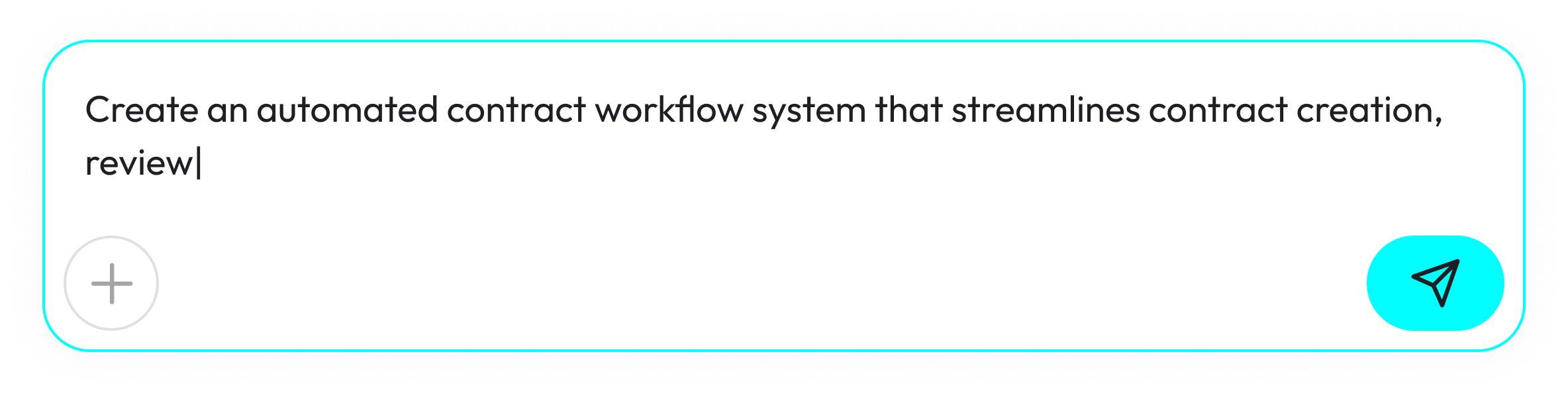
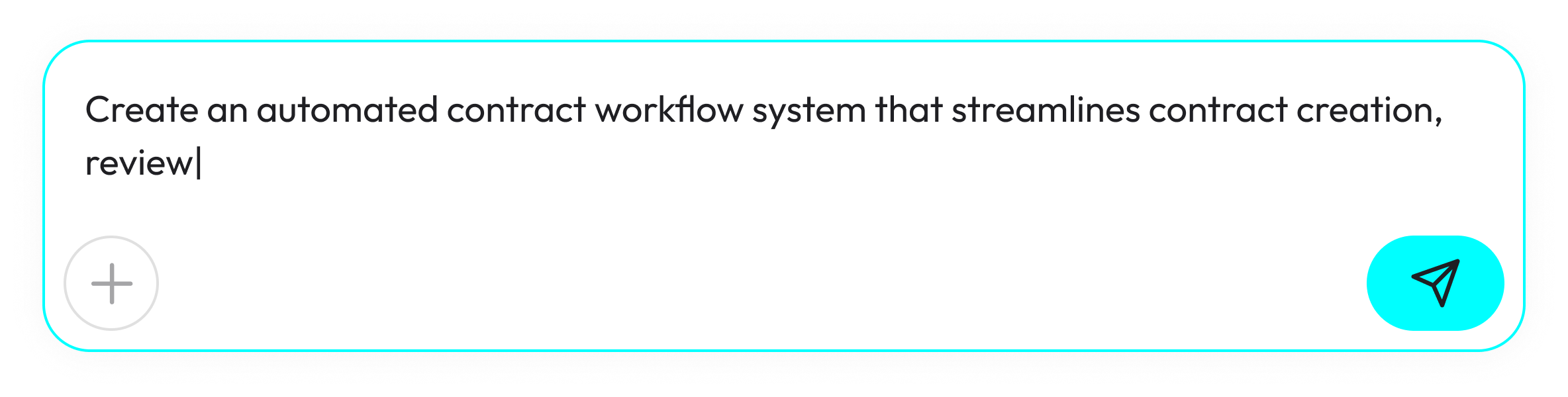
On **Home** in the left sidebar, you'll see a big input with the placeholder *"Describe your job and automation here to get started..."*. Type a short paragraph describing the job — what should happen, which apps are involved, and how you'll know it worked. Press **Enter** to send. You can attach up to 10 images if a screenshot helps explain.
**Good starting descriptions:**
* "Every morning at 8am, summarize my client emails from Gmail and post the digest in #updates on Slack."
* "When a new row is added to my Google Sheet, create a task in Linear and notify the owner in Teams."
 Aiden — the AI assistant — drafts a Playbook and opens it in the editor. You'll see three stacked sections on the canvas:
* **🎯 Goal** — what the playbook should accomplish and what "done" looks like. Edit it like a rich-text field.
* **⚙️ Integrations** — pills for the apps your playbook will use, inferred from your Goal and Plan.
* **📄 Plan** — an **Input** card, the ordered **Steps**, and an **Output** card.
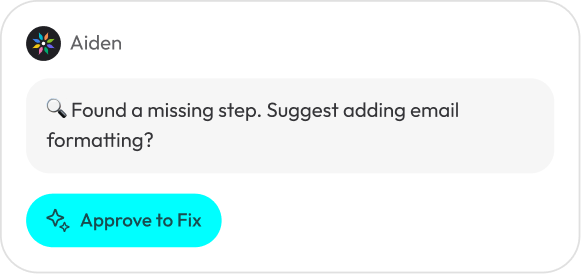
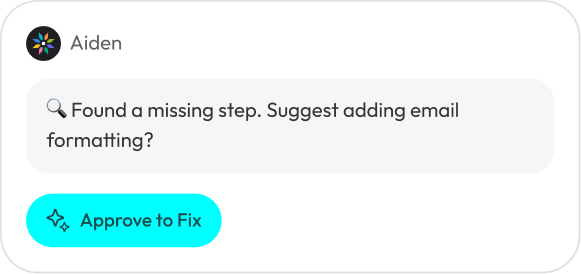
Aiden sits in a side chat that's always available — ask it to reword your Goal, add a step, or rework any section. The initial draft can take a moment; hang tight while it finishes.
Look at the integration pills in **⚙️ Integrations**:
* **White pill** — connected and ready to use.
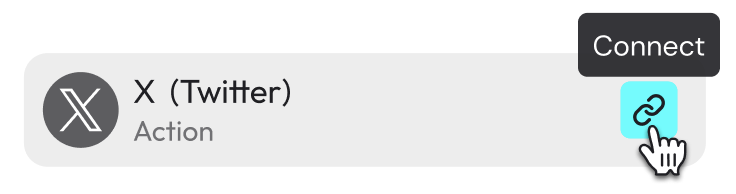
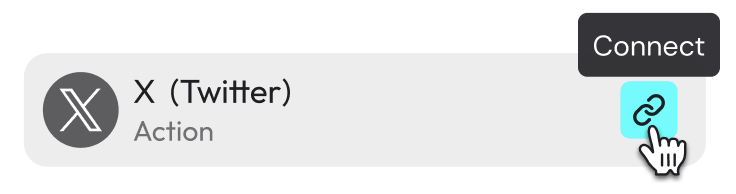
* **Orange pill** — you haven't signed in yet. Click the pill to connect.
* **Red pill** — something's unresolved. Click **Ask Agent to Fix** and Aiden will repair the reference.
You can also manage app connections from **Capabilities** in the sidebar. **Connections** is for MCP access, reusable skills, channels, and sandbox-related setup.
Aiden — the AI assistant — drafts a Playbook and opens it in the editor. You'll see three stacked sections on the canvas:
* **🎯 Goal** — what the playbook should accomplish and what "done" looks like. Edit it like a rich-text field.
* **⚙️ Integrations** — pills for the apps your playbook will use, inferred from your Goal and Plan.
* **📄 Plan** — an **Input** card, the ordered **Steps**, and an **Output** card.
Aiden sits in a side chat that's always available — ask it to reword your Goal, add a step, or rework any section. The initial draft can take a moment; hang tight while it finishes.
Look at the integration pills in **⚙️ Integrations**:
* **White pill** — connected and ready to use.
* **Orange pill** — you haven't signed in yet. Click the pill to connect.
* **Red pill** — something's unresolved. Click **Ask Agent to Fix** and Aiden will repair the reference.
You can also manage app connections from **Capabilities** in the sidebar. **Connections** is for MCP access, reusable skills, channels, and sandbox-related setup.
 Don't see the app you need? [Request an integration](https://discord.gg/D9SuaZAQaJ) and we'll look into adding it.
Once all pills are white, it's time to try it out.
* Click **Test Run** to trigger an on-demand run right now. Use this to confirm the Plan does what you expect.
* Open the **Triggers** tab to configure automatic runs: add a **Time Trigger** for schedules or an **External Event** trigger for events in connected apps, such as a new email or a new row in a sheet. You can also set the **Input** it receives and the **Output** it returns.
Don't see the app you need? [Request an integration](https://discord.gg/D9SuaZAQaJ) and we'll look into adding it.
Once all pills are white, it's time to try it out.
* Click **Test Run** to trigger an on-demand run right now. Use this to confirm the Plan does what you expect.
* Open the **Triggers** tab to configure automatic runs: add a **Time Trigger** for schedules or an **External Event** trigger for events in connected apps, such as a new email or a new row in a sheet. You can also set the **Input** it receives and the **Output** it returns.
 Open **Dashboard** in the sidebar to see every playbook you own. A status label next to each one tells you what's going on:
A run is in progress right now.
The steady state — the playbook is set up and recent runs succeeded.
The playbook is paused waiting for you — usually an approval or a piece of input. Click in to respond.
The last run didn't finish successfully. Click in to see what happened.
No triggers are active yet. Open the **Triggers** tab to turn one on.
Click any playbook to see its run history, open awaiting approvals, or jump back into the editor.
Open **Dashboard** in the sidebar to see every playbook you own. A status label next to each one tells you what's going on:
A run is in progress right now.
The steady state — the playbook is set up and recent runs succeeded.
The playbook is paused waiting for you — usually an approval or a piece of input. Click in to respond.
The last run didn't finish successfully. Click in to see what happened.
No triggers are active yet. Open the **Triggers** tab to turn one on.
Click any playbook to see its run history, open awaiting approvals, or jump back into the editor.
 Need another automation? Click **New Playbook** in the sidebar to start fresh, or head back to **Home** and describe something new.
## FAQ
Open the playbook to see which step failed and why. Common fixes: reconnect an orange integration pill, click **Ask Agent to Fix** on a red pill, or ask Aiden in the side chat to repair the step. Then try another **Test Run**.
Open the playbook and go to the **Triggers** tab. Confirm a **Time Trigger** or **External Event** is configured and active. If Dashboard shows **Not Ready**, there are no active triggers yet. You can also ask Aiden to set triggers up for you from the side chat.
That's the **Awaiting** status on the Dashboard. Click into the playbook to review the run, approve or edit the pending item, and let it continue.
Edit **🎯 Goal** to sharpen what "done" means, tweak the **Steps** in **📄 Plan**, or ask Aiden in the side chat to adjust a specific part. Run **Test Run** again to check. You're in control — the playbook is yours to shape.
We're in active beta and want to hear about it. [File a bug in Discord](https://discord.gg/kb6wpECN9W) and we'll take a look.
Need another automation? Click **New Playbook** in the sidebar to start fresh, or head back to **Home** and describe something new.
## FAQ
Open the playbook to see which step failed and why. Common fixes: reconnect an orange integration pill, click **Ask Agent to Fix** on a red pill, or ask Aiden in the side chat to repair the step. Then try another **Test Run**.
Open the playbook and go to the **Triggers** tab. Confirm a **Time Trigger** or **External Event** is configured and active. If Dashboard shows **Not Ready**, there are no active triggers yet. You can also ask Aiden to set triggers up for you from the side chat.
That's the **Awaiting** status on the Dashboard. Click into the playbook to review the run, approve or edit the pending item, and let it continue.
Edit **🎯 Goal** to sharpen what "done" means, tweak the **Steps** in **📄 Plan**, or ask Aiden in the side chat to adjust a specific part. Run **Test Run** again to check. You're in control — the playbook is yours to shape.
We're in active beta and want to hear about it. [File a bug in Discord](https://discord.gg/kb6wpECN9W) and we'll take a look.