> ## Documentation Index
> Fetch the complete documentation index at: https://docs.aident.ai/llms.txt
> Use this file to discover all available pages before exploring further.
# Triggers
> Decide when your playbook runs
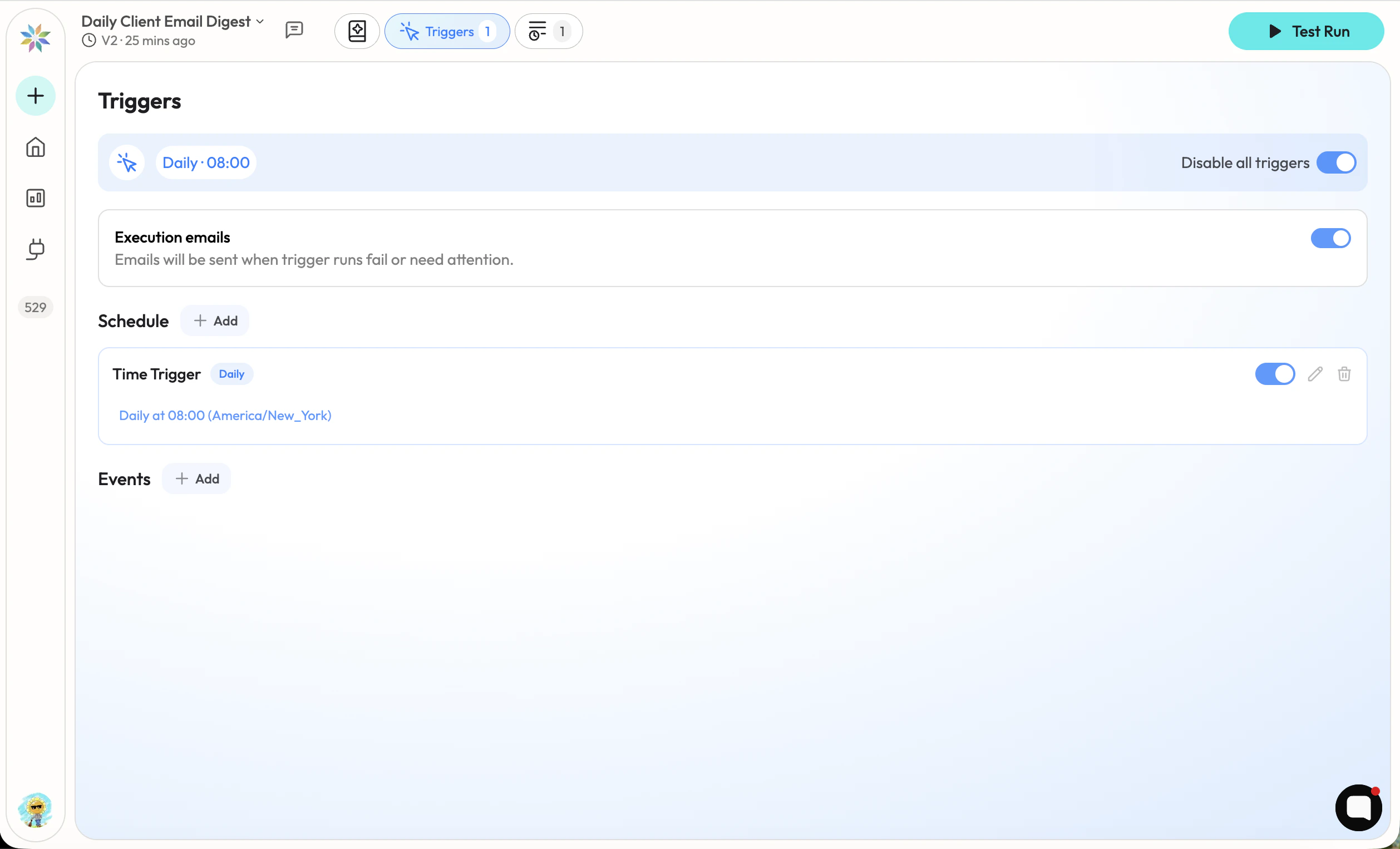
The **Triggers** tab is where you decide when a playbook runs without your hand on it. A playbook can have any number of triggers, and each one fires the playbook independently.
 You don't need a trigger to run a playbook — you can always start a manual run from the button in the top right of the page. Triggers exist for the runs you don't want to launch yourself.
## Opening the Triggers Tab
From the [Playbook editor](/documentation/playbooks), click the **Triggers** tab at the top of the page. The header reads **Triggers**. Aiden stays available in the side chat — describe what you want and Aiden can configure triggers for you.
## Two Kinds of Triggers
Run on a recurring time. Best for digests, reports, and anything tied to the clock.
Run when something happens in a connected app — a new Gmail message, a new Slack mention, a new row in a sheet.
When the tab is empty, the page shows a "No trigger configured" card with two shortcuts: **Schedule** and **Event Trigger**. Pick one to add your first trigger.
Without any trigger, the playbook still works — it just only runs when you hit the manual run button.
***
## Schedule
A **Schedule** trigger fires on a recurring time. Use it for things that should happen on the clock — every morning, every Monday, the first of the month.
You'll set a cadence (how often it repeats) and the time it should fire. Schedules use your account's timezone.
Common patterns:
* Every weekday at 9am — for daily digests
* Every Monday at 8am — for weekly summaries
* Every hour — for active monitoring
* The first of the month — for monthly reports
***
## Event Trigger
An **Event Trigger** fires when something happens in one of your connected apps. Use it for anything reactive — answer a customer when they email, log a row when a deal closes, draft a reply when a new message comes in.
Setting one up takes three pieces:
* **The integration** — the app that produces the event (Gmail, Slack, Stripe, etc.).
* **The event** — the specific thing that should fire the trigger (for example, "new email received").
* **Optional filters** — narrow the event to a subset (only emails from VIP clients, only messages in #support).
Event Triggers can pass the event's data straight into the playbook as its input, so you don't have to set up a separate input shape for the run. You can also leave a short note for Aiden to use as guidance on each fire.
***
## Managing Triggers
Once a playbook has triggers, the Triggers tab shows a status bar at the top with one chip per trigger.
* A blue status bar means at least one trigger is active.
* A gray status bar means no triggers are active.
Click an individual trigger chip to enable or disable that trigger. The master **Enable all triggers** / **Disable all triggers** switch on the right side controls the whole list.
The badge on the Triggers tab itself shows how many triggers are currently active — quick at-a-glance confirmation that the playbook is set up to run on its own.
When no triggers are active, the Dashboard shows the playbook as **Not Ready**. Turn at least one trigger on for the status to flip to **Healthy**.
***
## Next Steps
Edit the goal and steps these triggers run
Sign in to the apps your event triggers listen to
You don't need a trigger to run a playbook — you can always start a manual run from the button in the top right of the page. Triggers exist for the runs you don't want to launch yourself.
## Opening the Triggers Tab
From the [Playbook editor](/documentation/playbooks), click the **Triggers** tab at the top of the page. The header reads **Triggers**. Aiden stays available in the side chat — describe what you want and Aiden can configure triggers for you.
## Two Kinds of Triggers
Run on a recurring time. Best for digests, reports, and anything tied to the clock.
Run when something happens in a connected app — a new Gmail message, a new Slack mention, a new row in a sheet.
When the tab is empty, the page shows a "No trigger configured" card with two shortcuts: **Schedule** and **Event Trigger**. Pick one to add your first trigger.
Without any trigger, the playbook still works — it just only runs when you hit the manual run button.
***
## Schedule
A **Schedule** trigger fires on a recurring time. Use it for things that should happen on the clock — every morning, every Monday, the first of the month.
You'll set a cadence (how often it repeats) and the time it should fire. Schedules use your account's timezone.
Common patterns:
* Every weekday at 9am — for daily digests
* Every Monday at 8am — for weekly summaries
* Every hour — for active monitoring
* The first of the month — for monthly reports
***
## Event Trigger
An **Event Trigger** fires when something happens in one of your connected apps. Use it for anything reactive — answer a customer when they email, log a row when a deal closes, draft a reply when a new message comes in.
Setting one up takes three pieces:
* **The integration** — the app that produces the event (Gmail, Slack, Stripe, etc.).
* **The event** — the specific thing that should fire the trigger (for example, "new email received").
* **Optional filters** — narrow the event to a subset (only emails from VIP clients, only messages in #support).
Event Triggers can pass the event's data straight into the playbook as its input, so you don't have to set up a separate input shape for the run. You can also leave a short note for Aiden to use as guidance on each fire.
***
## Managing Triggers
Once a playbook has triggers, the Triggers tab shows a status bar at the top with one chip per trigger.
* A blue status bar means at least one trigger is active.
* A gray status bar means no triggers are active.
Click an individual trigger chip to enable or disable that trigger. The master **Enable all triggers** / **Disable all triggers** switch on the right side controls the whole list.
The badge on the Triggers tab itself shows how many triggers are currently active — quick at-a-glance confirmation that the playbook is set up to run on its own.
When no triggers are active, the Dashboard shows the playbook as **Not Ready**. Turn at least one trigger on for the status to flip to **Healthy**.
***
## Next Steps
Edit the goal and steps these triggers run
Sign in to the apps your event triggers listen to